Working with Your Agent
Using your agent day-to-day
Responses stream in real-time and may include formatted text, code blocks, tables, or structured data.
Tips for good results:
- Start with a clear goal: "I need to write a blog post about X"
- Give feedback: "That's too formal, make it more casual"
- Work iteratively — get a draft, refine it, polish it
- Don't expect perfection on the first try. Treat responses as starting points
- Verify important facts. The agent can be confident and wrong
Understanding your usage
If you're using amazee.ai Private AI Keys, your usage meter is visible on your dashboard.
| Usage level | Messages/day | Tokens/month |
|---|---|---|
| Light | 5–10 | ~50,000–100,000 |
| Moderate | 20–30 | ~150,000–200,000 |
| Heavy | 50+ | Exceeds 200,000 |
Long prompts, detailed responses, and back-and-forth refinements add up quickly. AI agents use more tokens than regular chatbots because they send tool definitions, workspace files, and conversation history on every turn.
If you're running out of tokens faster than expected, see Optimizing Token Usage for strategies that can reduce your costs by 3–30×.
Changing models
Option 1: Ask your agent directly — "Switch to claude-sonnet"
Option 2: Change it in the OpenClaw gateway settings.
Connect to Telegram
Easiest way
Just ask your agent: "How do I connect you to Telegram?" — it'll walk you through the whole thing.
If you'd rather do it yourself:
What you'll need: A Telegram account and about 5 minutes.
Step 1 — Create your bot
Open Telegram and search for @BotFather. Start a chat and type /newbot. It'll ask for a name and username — pick anything you like. When it's done, it gives you a token (a long string of numbers and letters). Copy it.
Step 2 — Tell your agent
Paste this into your amazeeClaw chat:
"I just created a Telegram bot. Here's my token: [paste token]. Can you set it up for me?"
Your agent will handle the connection. Once done, you can message it from Telegram and it'll respond there.
Step 3 — Approve the connection
The first time you message from Telegram, your agent may ask you to approve the connection. Follow the prompt.
For full technical docs, see docs.openclaw.ai/channels/telegram.
Connect to WhatsApp
What you'll need: A phone number for WhatsApp. A spare SIM or Google Voice number works, but your personal number is fine too.
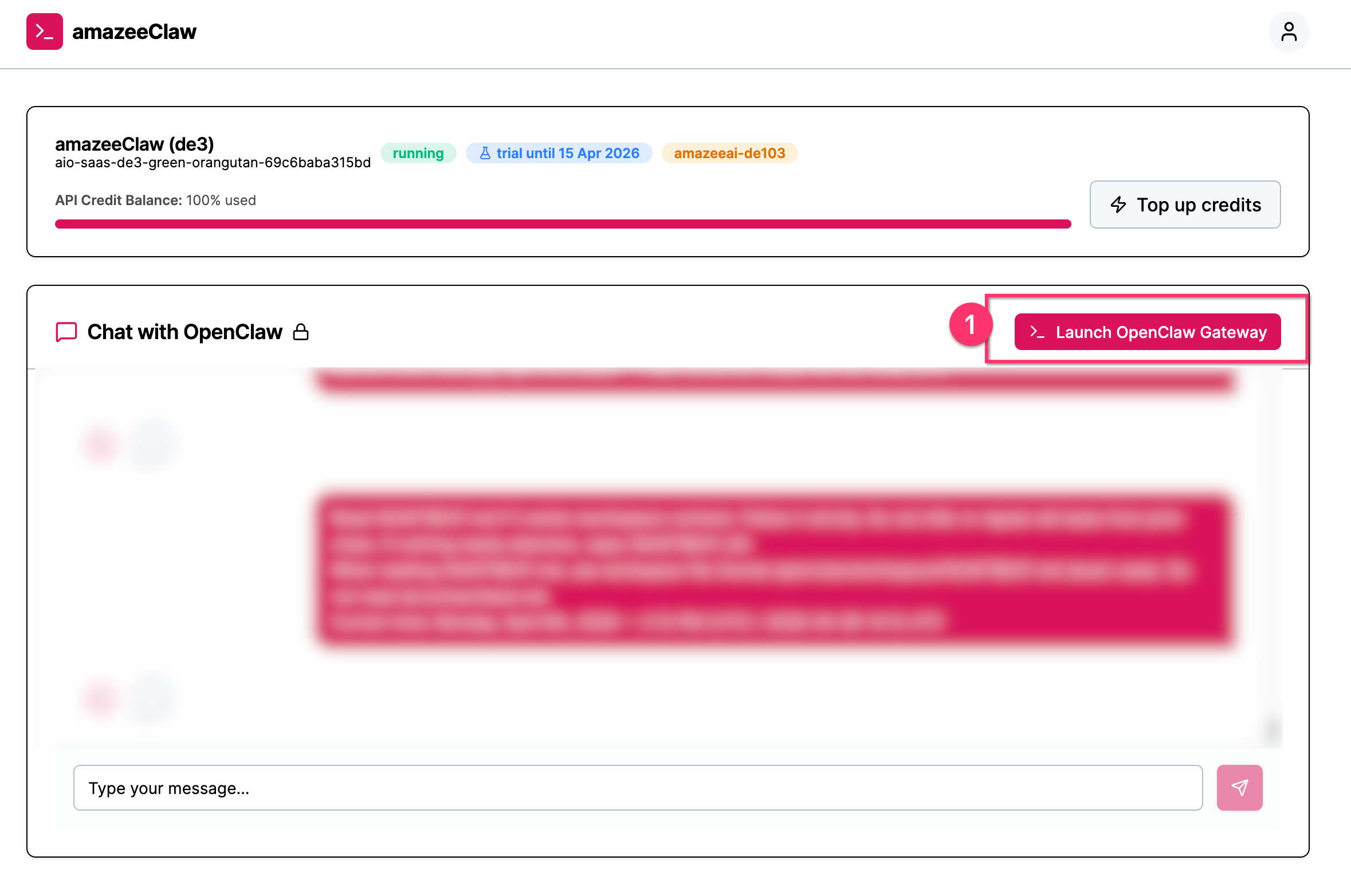
Step 1 — Open the OpenClaw gateway UI
You'll find the gateway link in the top-right corner of your amazeeClaw chat.
Step 2 — Ask your agent to start WhatsApp setup
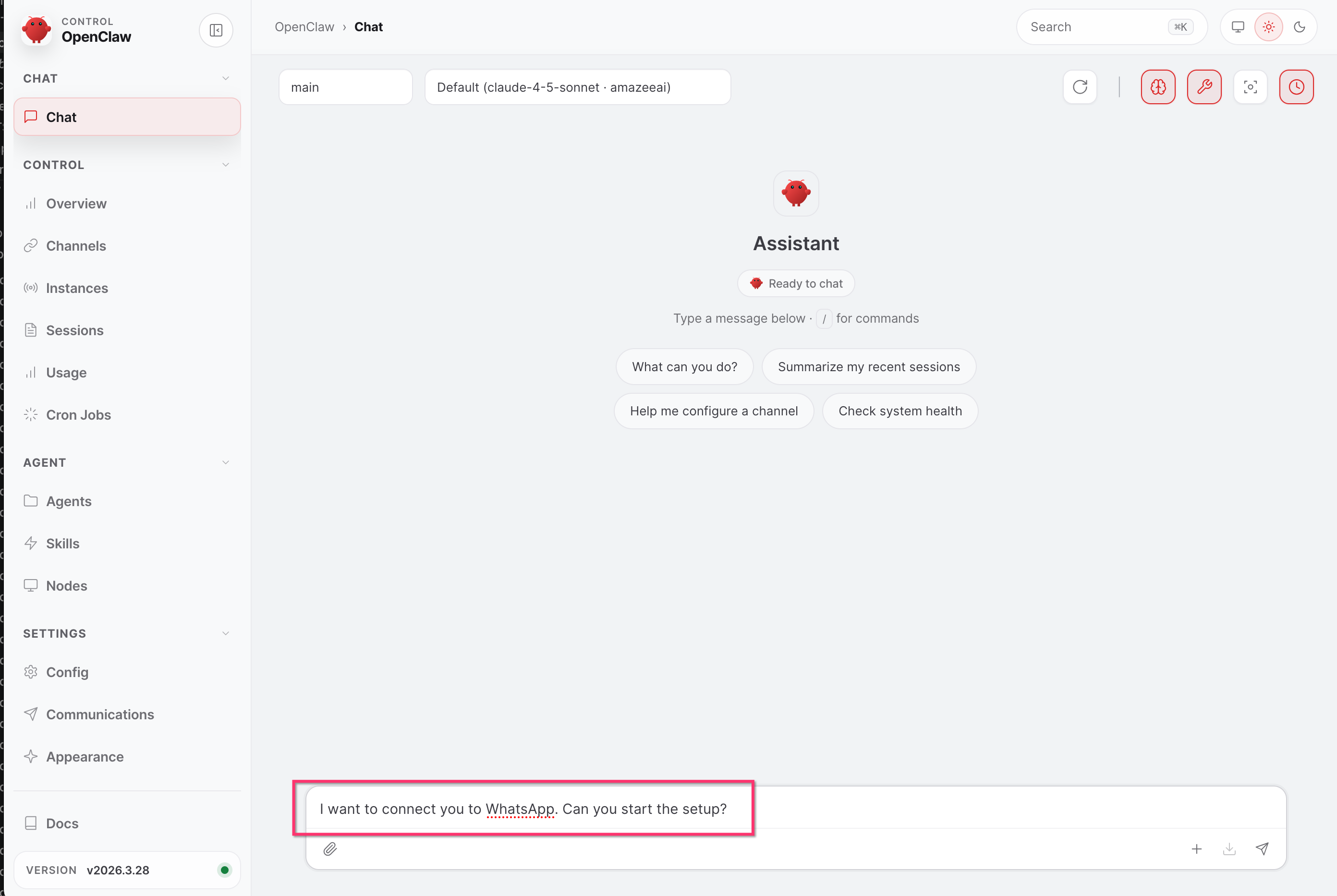
In the chat window, type:
"I want to connect you to WhatsApp. Can you start the setup?"
The gateway may restart during this — that's normal. It reconnects within a few seconds.
Step 3 — Show the QR code via the Channels UI
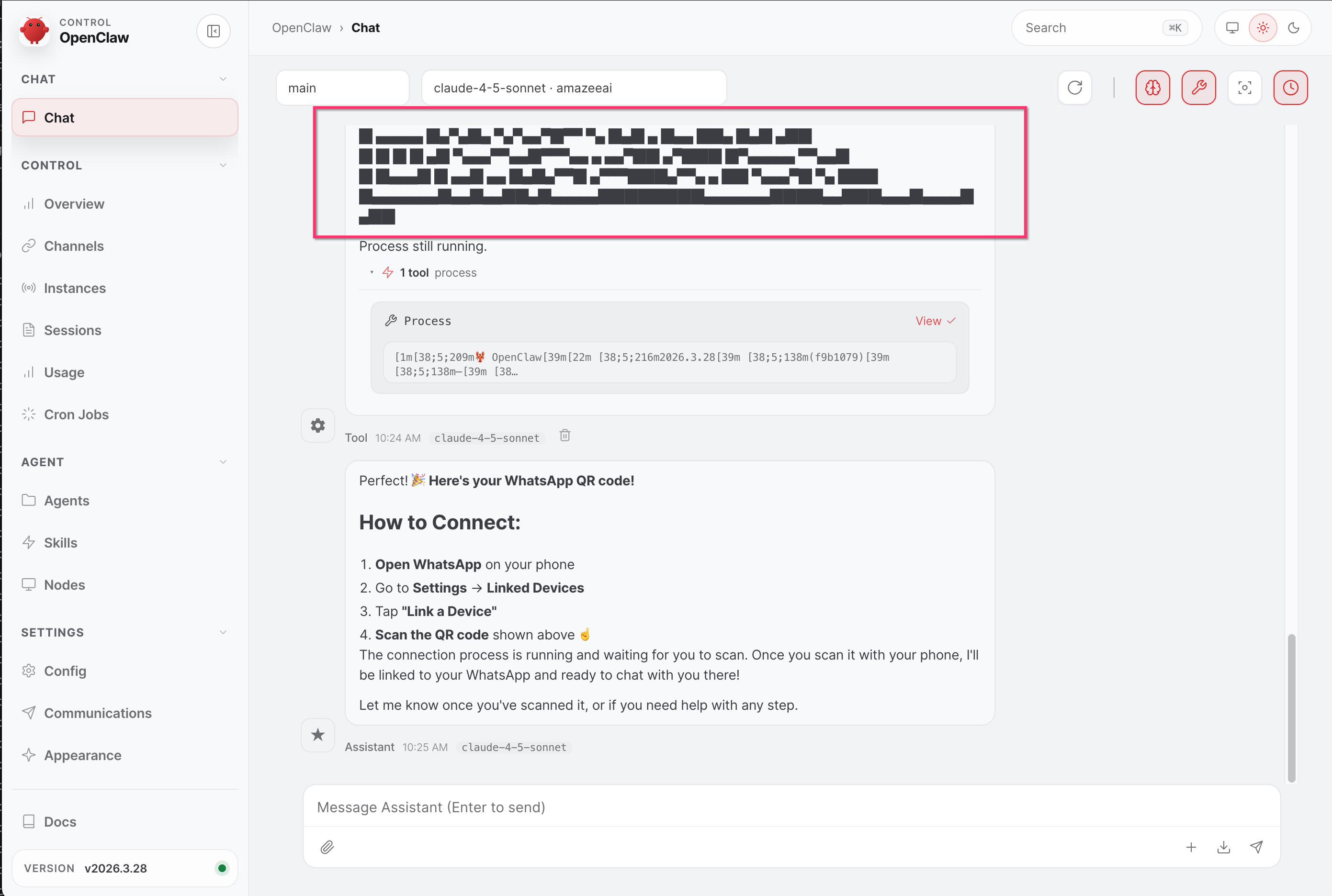
Known issue: QR code in chat
The QR code shown in the chat window may appear scrambled and won't scan. Use the Channels UI instead (steps below). We're working with the OpenClaw team to fix this.
- In the gateway, go to Channels
- Find the WhatsApp section and scroll down
- Click Relink, then click Wait for scan (buttons may appear inactive — this is expected)
- Scroll up to see the QR code
Step 4 — Scan the QR code
On your phone: open WhatsApp → You → Linked Devices → Link a Device → scan the QR code.
Step 5 — Send your first message
Open Chats on your phone and send a message. Your agent will respond.
Note
Your agent ignores group chats and broadcast messages by default. If you want it active in a group, ask it to set that up.
For full technical docs, see docs.openclaw.ai/channels/whatsapp.